ChatGPT has no hands.
You ask it how to organize your files. It gives you a system. Then you spend two hours dragging folders around.
You ask it to find something in a 50-page PDF. It tells you to use Ctrl+F. Thanks.
You ask it to rename 200 photos. It writes you a script you don't know how to run.
The AI thinks. You do the work.
Claude Code Is Different
Claude Code doesn't just answer questions. It actually does things on your computer.
- Opens and reads your files - PDFs, spreadsheets, documents
- Searches inside files for specific words (across hundreds at once)
- Edits files directly
- Creates new files
- Moves, renames, and organizes things
You describe what you want in plain English. Claude does it.
Since launching in May 2025, Claude Code has gone from zero to $1 billion in annual revenue in six months. People aren't paying for another chatbot. They're paying for an AI that works.
What it costs: Claude Code uses pay-per-use pricing. A typical session runs $0.50-5 depending on complexity.
What Can You Actually Do With It?
Organize Files and Documents
"Search all 200 contracts in this folder for mentions of 'termination clause'" - Claude finds them in seconds.
"Rename all these files from 'IMG_2024...' to 'Q1_Receipt_...'" - Done in one command.
"Read this 50-page PDF and pull out all the dollar amounts" - Claude reads it, extracts the numbers, writes them to a spreadsheet.
Research and Analysis
One user fed their raw DNA data from an ancestry test to Claude to find health-related genes worth monitoring. Claude searched through the massive file and extracted what mattered.
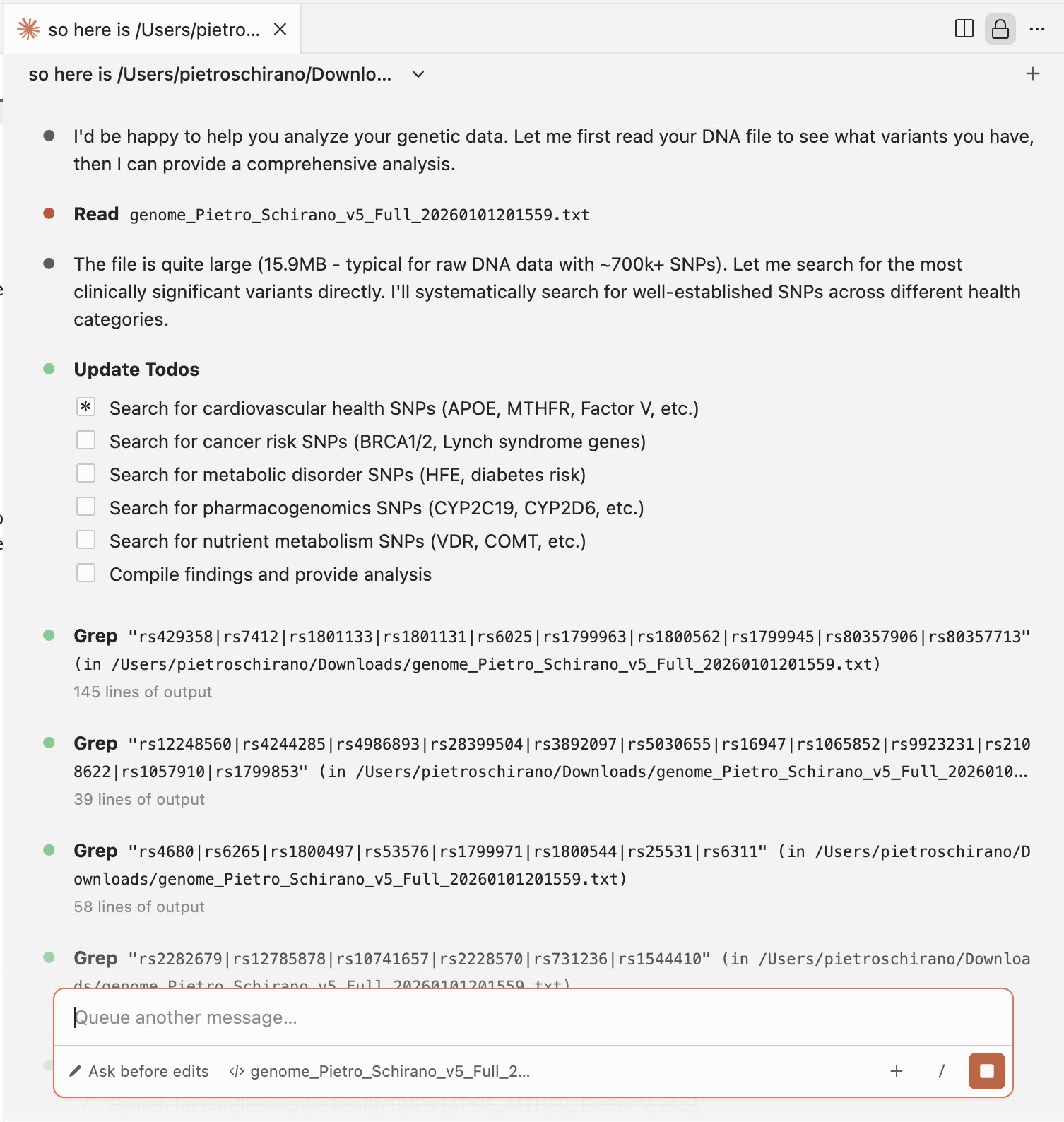
Users have reported recovering corrupted files, analyzing large datasets, and automating research tasks that would normally take hours of manual work.
Sales and Outreach
Sales teams are building workflows that automate prospect research. One command takes a company URL and returns: company research, tech stack signals, verified contacts with emails and phones, personalized email drafts, and call scripts.
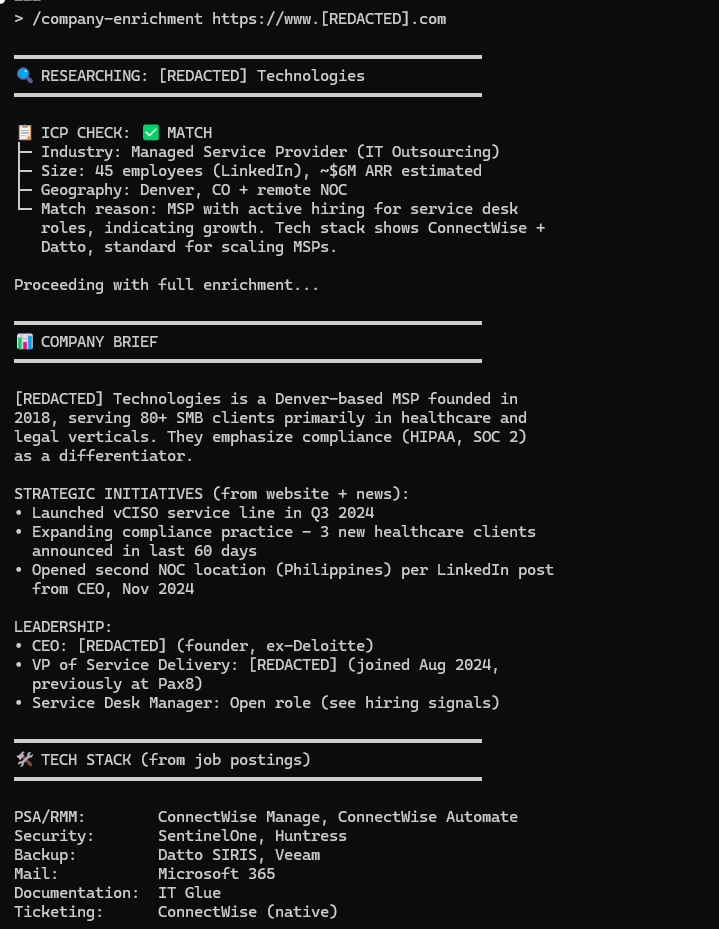
Prospect research that took 60-90 minutes now takes 5-10 minutes to run and review.
How It Works (Without the Jargon)
For bigger tasks, Claude Code maintains a checklist of what needs to be done. It tracks progress, can't declare "finished" until everything actually passes, and tests its own work instead of just guessing. If something breaks, you can undo it with a single command.
Memory
Claude can remember things between conversations. Just tell it:
"Remember that my budget spreadsheet is in /finances/2024/"
"Add to your memory: always use metric units"
"Remember this for next time: the client prefers formal language"
Claude saves these to a file it reads at the start of every conversation. No more repeating yourself.
Shortcuts
You can create shortcuts for tasks you do repeatedly. Here's how:
Step 1: Create a folder called .claude/commands/ in your project folder.
Step 2: Create a text file with your shortcut name. For a weekly report, create .claude/commands/weekly-report.md:
Read all files modified in the last 7 days.
Summarize what changed into key accomplishments.
Format as bullet points.
Save to reports/weekly-report-[today's date].md
Step 3: Now type /weekly-report and Claude runs the whole workflow.
More examples you can copy:
.claude/commands/summarize.md - Summarize any file:
Read the file $ARGUMENTS and summarize it in 3-5 bullet points.
Keep it under 200 words.
Usage: /summarize meeting-notes.txt
.claude/commands/find-todos.md - Find all TODOs in a folder:
Search all files in this folder for TODO, FIXME, or HACK comments.
List each one with the file name and line.
Usage: /find-todos
Connect to Your Tools
By default, Claude can only see files on your computer. But you can connect it to the other tools you use daily.
What's an MCP? It's a plugin that lets Claude talk to other services - Notion, Google Drive, Slack, your CRM, whatever you use.
How to find them: Think about the tools you use most. Google "[tool name] MCP" and you'll often find one. Popular ones include:
- Notion - read and write pages
- Google Drive - search and read documents
- Slack - read messages, post updates
- HubSpot/Salesforce - pull customer data
- Airtable - query your bases
How to add one:
claude mcp add notionNow you can say things like "Pull my notes from Notion about Project X and summarize them" or "Find all Slack messages from this week mentioning the product launch."
The more tools you connect, the more useful Claude becomes. Start with one tool you use heavily and see what's possible.
Visual Interfaces with Claude Canvas
Claude Code normally works through text. But Claude Canvas adds something new: visual interfaces right in your terminal.
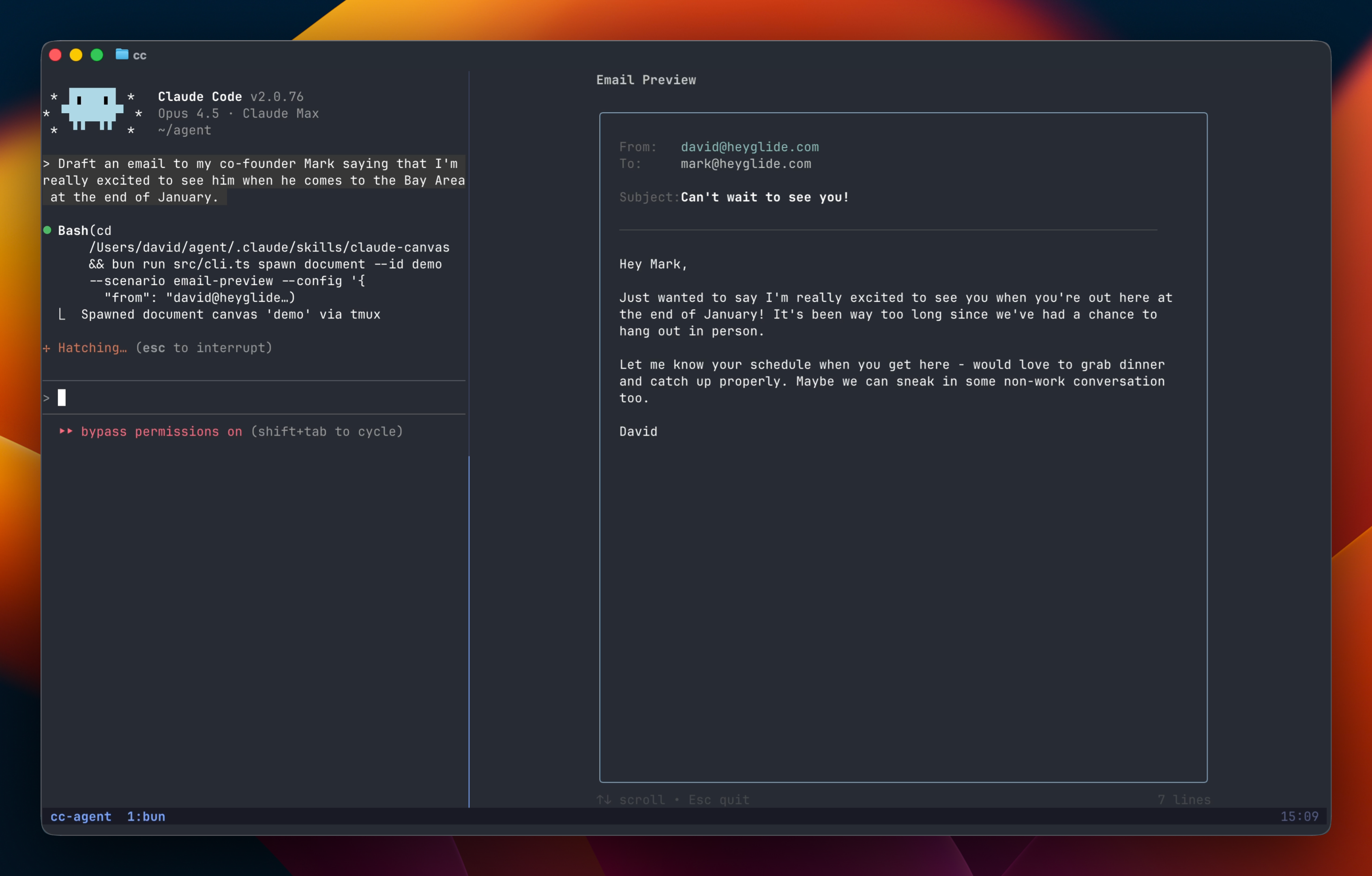
Think email composers, calendars, booking interfaces - Claude can now show you interactive screens instead of just text responses. It's still experimental, but it hints at where AI assistants are heading: from text-only to visual, interactive experiences.
The Key Insight
You don't need to understand the technical details. Just talk to Claude like you'd talk to an assistant:
- "Remember this" - adds to memory
- "Do that thing I set up" - runs a shortcut
For the technical details on memory, shortcuts, and advanced configuration, see Claude Code for Engineers. For setting this up across a team, see Claude Code for Teams.
More resources:
- Anthropic's Best Practices - Official guide
- How to Write a Good CLAUDE.md - Memory file tips
- Claude Skills Introduction - Skills deep dive
Get Started
You have two options:
Option 1: Claude on the Web (Easiest)
If the terminal feels intimidating, start with claude.ai. It's the same Claude, just in your browser.
Projects let you organize work and add context. Create a project, upload your files, add custom instructions ("always use bullet points", "write in a formal tone"), and every conversation in that project follows those rules.
For teams, projects can be shared - everyone sees the same files and instructions, and you can share useful conversations with teammates.
The web version doesn't have file system access or run commands, but it's a great way to start before moving to Claude Code.
Option 2: Claude Code (Full Power)
If you have Node.js installed:
Open Terminal and run:
npm install -g @anthropic-ai/claude-codeThen type claude and start talking.
Starting from scratch? Click here for the full setup.
Step 1: Open Terminal
On Mac: Press Cmd+Space, type "Terminal", press Enter.
On Windows: Press Windows key, type "Command Prompt" or "PowerShell", press Enter.
Step 2: Install Node.js
Go to nodejs.org and download the LTS version. Run the installer.
Step 3: Install Claude Code
In Terminal, paste this and press Enter:
npm install -g @anthropic-ai/claude-codeStep 4: Log in
Type claude and press Enter. A browser window opens. Sign in with your Anthropic account (or create one at anthropic.com). Type /cost anytime to see your current session cost.
Try These First
Based on what you need:
For file tasks:
"Find all PDFs in my Downloads folder and tell me what each one is about"
For research:
"Read this document and summarize the key points in bullet form"
For sales:
"Based on this company's website text [paste it], write a personalized outreach email for [your product]"
Point Claude at a folder with real files you actually need to work with. Not a test - something tedious you've been avoiding.
One thing to remember: Claude is good at doing, not deciding. Tell it exactly what you want. "Organize my files" is vague. "Move all PDFs to a folder called 'Documents' and all images to 'Photos'" is clear. The clearer your instructions, the better the output.