I was a Cursor loyalist. For months, my colleagues kept telling me to try Claude Code. I brushed them off - I wanted to see the code, watch the diffs, feel in control. Cursor gave me that.
Then I had time over the holidays to actually try it. Within a week, I realized my instinct was wrong.
Watching every diff is a bottleneck. The AI builds features better when you let it work uninterrupted. Every diff I reviewed was context I had to hold in my head while juggling multiple projects. Reading code you didn't write is draining - and unnecessary when you can just review the final result.
The right approach: plan extensively upfront, let the AI work and receive feedback, then review at the end before it hits prod.
Boris Cherny, who created Claude Code, runs 5-10 sessions in parallel. Since launching in May 2025, Claude Code hit $1 billion annualized run rate in six months. I've watched several engineer friends convert from skeptics to daily users in recent months.
The Mindset Shift
The instinct to watch every change comes from a good place - you want to understand what's happening. But it's the wrong optimization.
When you review diffs in real-time, you're context-switching constantly. You're reading code you didn't write, trying to hold the AI's mental model while maintaining your own. It's draining.
When you let Claude work and review at the end:
- You stay focused on the outcome, not the process
- You can run multiple sessions on different features
- You review coherent changes, not fragments
- You catch architectural issues, not typos
The fear is "what if it does something wrong?" The answer: git. Everything is committed. If it's wrong, you roll back. The cost of a bad change is near-zero. The cost of constant context-switching is high.
What Makes It Work
The Harness
For long-running tasks, Anthropic developed a pattern they call a "harness" - scaffolding that keeps Claude on track across multiple sessions:
| Component | What it does |
|---|---|
| Feature list (JSON) | Every requirement listed with verification steps. Claude can only mark pass/fail - can't modify the requirements themselves. |
| Progress file | claude-progress.txt - Claude updates after each session with what's done and what's left. |
| Git commits | Every change committed. Roll back if something breaks. New sessions read git history for context. |
| Startup ritual | Each session: run pwd, read progress file, review feature list, check git logs - then work. |
| Browser verification | Claude uses Puppeteer to verify features end-to-end like a human would, not just unit tests. |
This isn't built-in - it's a pattern you implement for complex tasks. In Anthropic's example, they listed features like "a user can open a new chat, type a query, press enter, and see a response" with specific test steps. Claude used Puppeteer to click through the UI, verify each feature worked, and mark it pass/fail before moving to the next one. (Source)
Memory (CLAUDE.md)
Every time you start a new conversation, Claude forgets everything. The solution: a file called CLAUDE.md that Claude reads at the start of every conversation.
| File | Who sees it |
|---|---|
./CLAUDE.md | Anyone working on this project |
./CLAUDE.local.md | Just you, on this project |
~/.claude/CLAUDE.md | Just you, on all projects |
The Anthropic team shares a single CLAUDE.md for their repo, checked into git. The whole team contributes multiple times a week - anytime Claude does something incorrectly, they add it so Claude knows not to repeat the mistake. Their shared file is about 2.5k tokens covering common bash commands, code style conventions, and UI patterns.
What to put in CLAUDE.md:
- Project structure and conventions
- Common commands you run
- Rules ("always use pnpm", "never modify the auth module directly")
- Mistakes Claude has made that you don't want repeated
Quick way to add memories: Tell Claude "remember this" or type # followed by a note.
Slash Commands
Slash commands are shortcuts for common workflows. Type / and a command name to run a saved procedure.
Create them in .claude/commands/ as markdown files. For example, .claude/commands/review.md might contain instructions for code review. Type /review and Claude follows those instructions.
Build these for every "inner loop" workflow you do many times a day - debugging, PR reviews, test writing. Check them into git so your whole team benefits.
For more advanced use, skills (.claude/skills/) let you build procedures that Claude loads contextually based on the situation, rather than being triggered explicitly.
Real Example: On-Call Debugging
I woke up to this chart at Conduit last week - execution times spiked to 250K ms around 2 AM:
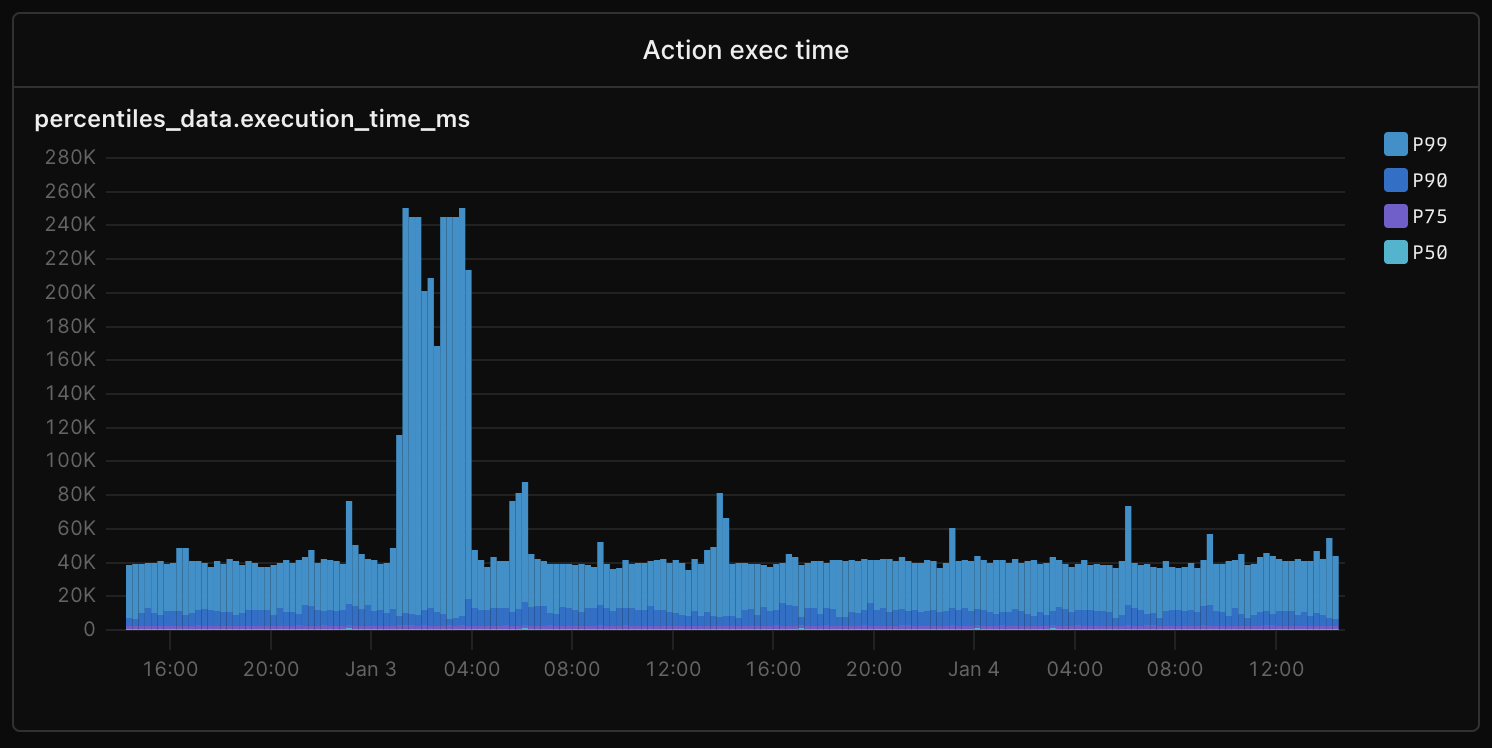
I had no idea what caused it. Our AI response system had been backlogged for over an hour. I sent Claude this:
There was a backlog of the work pool last night, about 2 a.m. local time in Bangkok. Could you please investigate through Axiom
That's it.
Claude dug through our logs, correlated timestamps, identified the root cause (rate limiting from an upstream API causing cascading failures), and produced a full incident report via Notion MCP:
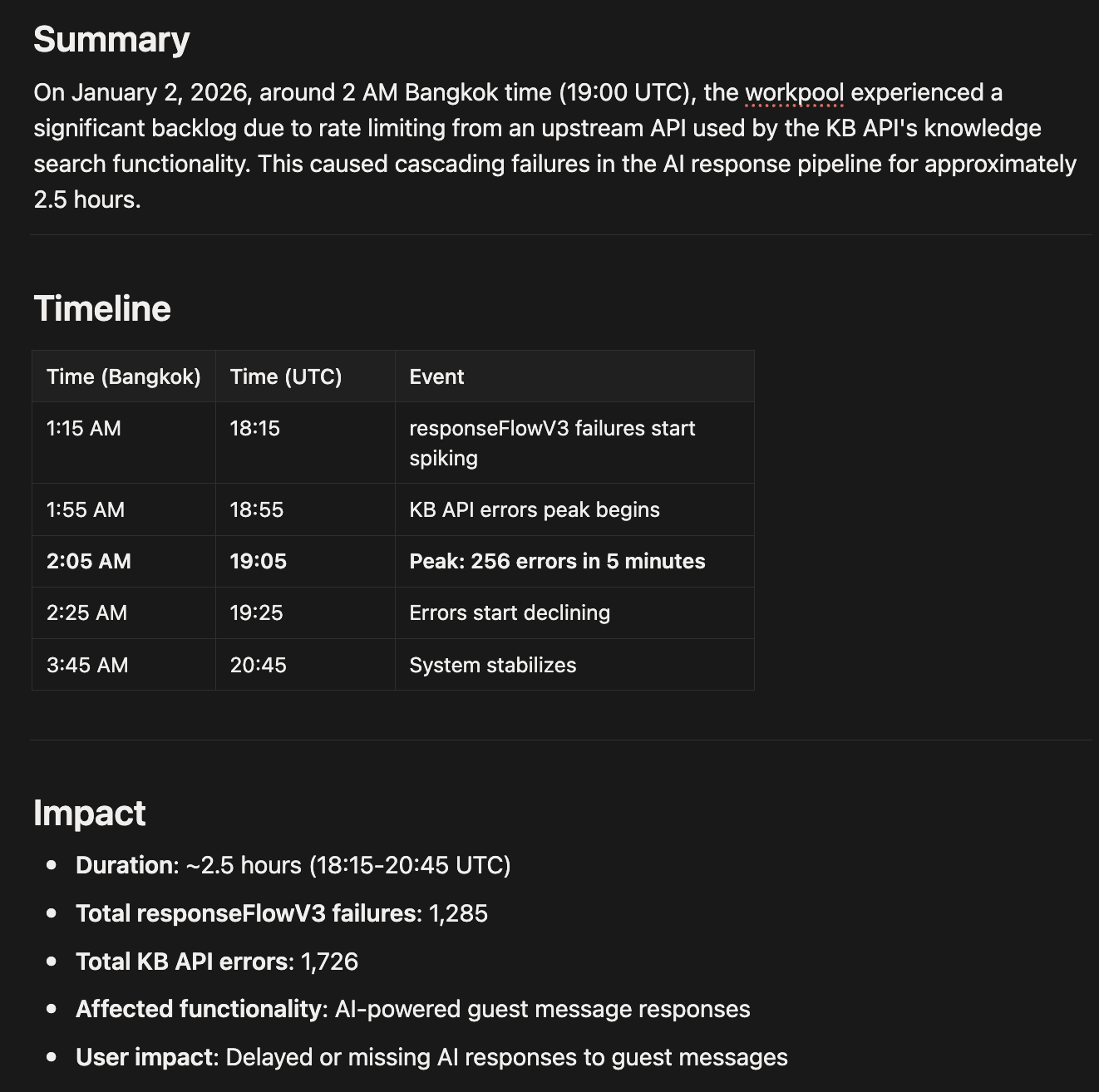 Summary, timeline, and impact - generated and written to Notion automatically
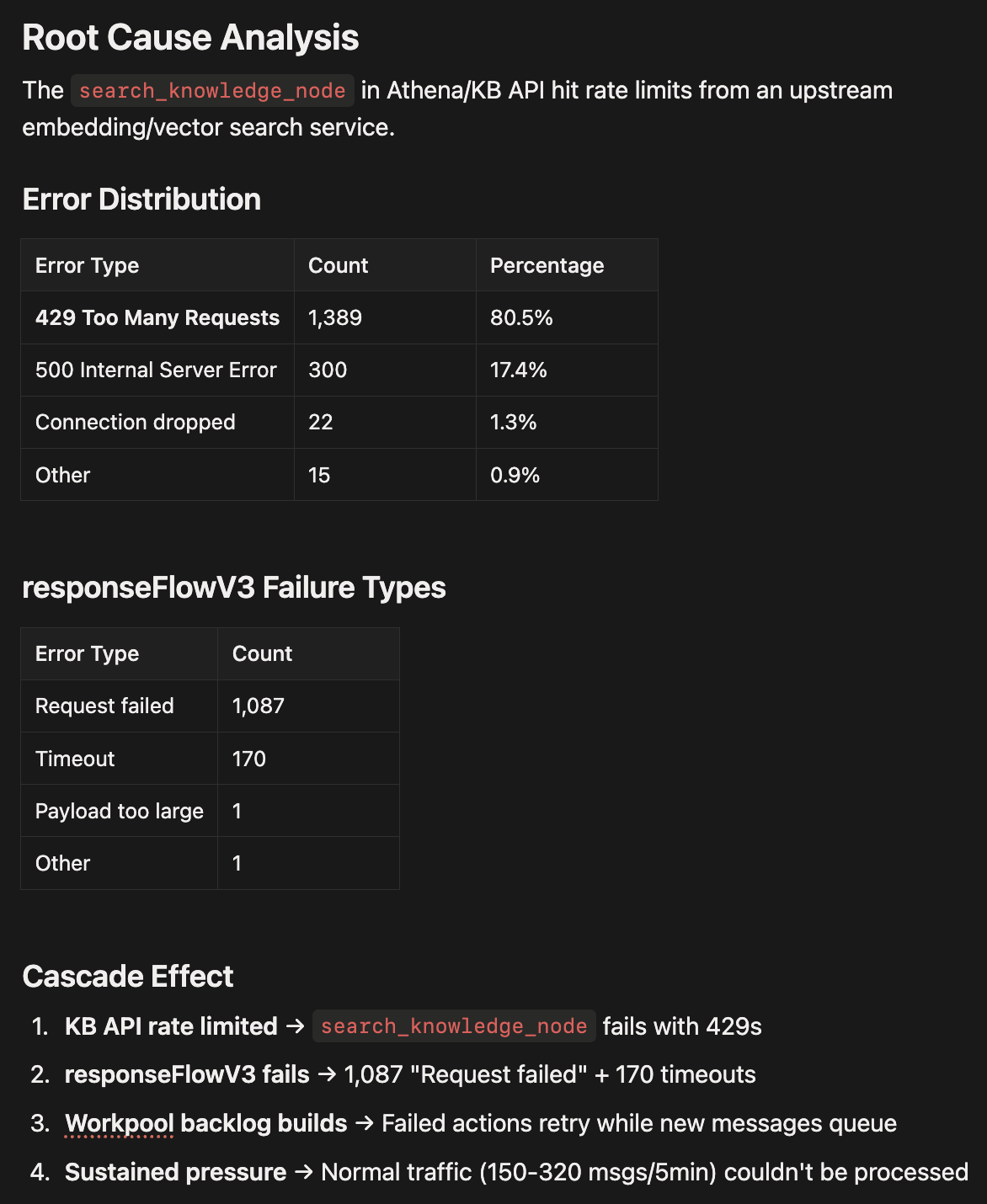 Root cause analysis with error distribution breakdown
Then it created Linear tickets for the fixes:
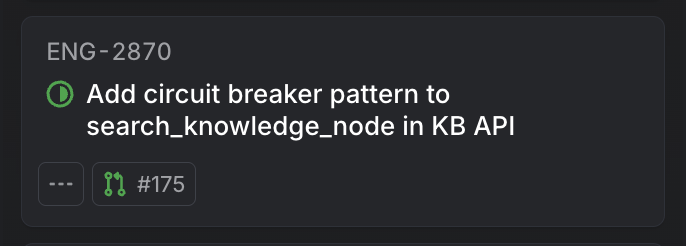
An AI agent picked up the ticket and built the circuit breaker pattern. We just reviewed and merged.
Total time from "what happened?" to "fix in review": about 30 minutes. Similar incidents before Claude Code took 2-3 hours of log diving, correlation, and manual ticket creation.
(This workflow uses Axiom for logs, Notion MCP, and Linear MCP - each took about 5 minutes to set up.)
Get Started
Step 1: Install
npm install -g @anthropic-ai/claude-codeStep 2: Navigate to a project
cd ~/your-project-folderStep 3: Give it a real task
claude "read through this codebase and tell me what it does"Step 4: Set up memory
claude /initThis creates a CLAUDE.md file. Add a few lines about what this project is and any rules Claude should follow.
That's it. You're using Claude Code. Everything else - MCP servers, subagents, custom commands - can wait until you hit a wall that requires them.
Connect Claude to Everything
This is the most important section.
By default, Claude only sees local files. That's useful, but limited. The real unlock is connecting it to your entire stack - logs, databases, issue trackers, cloud infra, everything. When Claude can see what you see, it can actually help debug production issues, not just write code.
Connect your observability:
claude mcp add axiom
claude mcp add datadog
claude mcp add sentry
Now: "Why did error rates spike at 2am?" actually works.
Connect your databases:
claude mcp add postgres --connection-string $DATABASE_URLNow: "Find all users who signed up last week but never activated" runs a real query.
Connect your tools:
claude mcp add github
claude mcp add linear
claude mcp add notion
claude mcp add slack
Now: "Create a ticket for this bug, link the PR, and notify #engineering" happens in one prompt.
Connect your cloud:
claude mcp add aws
claude mcp add cloudflare
Now: "Show me which Lambda functions had errors today" pulls real data.
The on-call debugging example earlier? That worked because Claude could access Axiom logs, write to Notion, and create Linear tickets. Without those MCPs, I'd still be copy-pasting between tabs.
Find MCPs: Search "[tool name] MCP server" or browse MCP Hub. If a tool has an API, someone's probably built an MCP for it.
The mindset: Every tool you use daily should be connected. If you're copy-pasting data between Claude and another app, that's a sign you need an MCP.
Building Custom Agents with the Agent SDK
If you've used Claude Code, you've seen what an AI agent can actually do: read files, run commands, edit code, figure out the steps to accomplish a task. The Claude Agent SDK lets you build that same capability into your own applications.
Why this matters: Claude Code is powerful, but it's a CLI tool. The Agent SDK lets you embed agentic capabilities anywhere - your internal tools, CI/CD pipelines, Slack bots, web apps, whatever you're building. You get the same tool-using, multi-step reasoning that makes Claude Code effective, but configured exactly how you need it. This is how you go from "using Claude Code" to "building products powered by Claude agents."
What the SDK handles: The tedious agentic loop. Without it, you're manually calling the model, checking if it wants to use a tool, executing the tool, feeding the result back, repeating until done. The SDK manages all of that:
import { query } from "@anthropic-ai/claude-agent-sdk";

for await (const message of query({ prompt: "Fix the bug in auth.py" })) {
  console.log(message); // Claude reads files, finds bugs, edits code
}
Key options you'll use:
model: "opus"- which Claude model to useallowedTools: ["Read", "Glob", "Grep", "Write"]- restrict available toolspermissionMode: "bypassPermissions"- run without prompts (use carefully)maxTurns: 250- limit how many steps the agent can takeoutputFormat: { type: "json_schema", schema: yourSchema }- structured output
Custom permission handlers: For fine-grained control, use canUseTool:
canUseTool: async (toolName, input) => {
  if (["Read", "Glob", "Grep"].includes(toolName)) {
    return { behavior: "allow", updatedInput: input };
  }
  if (toolName === "Write" && input.file_path?.includes(".env")) {
    return { behavior: "deny", message: "Cannot modify .env files" };
  }
  return { behavior: "allow", updatedInput: input };
}
Hooks for safety: Add PreToolUse hooks to block dangerous commands or log actions:
hooks: {
  PreToolUse: [
    { hooks: [auditLogger] },
    { matcher: "Bash", hooks: [blockDangerousCommands] }
  ]
}
MCP servers in agents: Pass custom MCP servers for specialized capabilities:
mcpServers: { "code-metrics": customServer },
allowedTools: ["Read", "mcp__code-metrics__analyze_complexity"]
Tips from production use:
- Structured output is underrated. Use
outputFormat: { type: "json_schema", schema }to get typed, parseable responses instead of free-form text. Perfect for code review agents that return issues with severity, file, and line number. - Track costs. Every result message includes
message.total_cost_usd. Log it, alert on it, bill for it. - Limit tool access. Don't give agents tools they don't need. A code review agent needs
Read,Glob,Grep- it doesn't needWriteorBash. - Block dangerous operations. Use
canUseToolto deny writes to.envfiles, blockrm -rf, prevent access to sensitive directories. - Session management for multi-turn. Capture
session_idfrom the first response to resume conversations later - useful for interactive agents that need user input mid-flow.
The SDK is TypeScript-first and handles all the complexity of tool execution, streaming, and subagent orchestration. If you're building internal tools, CI/CD integrations, or customer-facing products - this is how you go from using AI to shipping AI.
Based on Nader Dabit's guide to the Claude Agent SDK.
Agent-Native Design Principles
If you're building tools for agents, these principles from Every.to's agent-native guide matter:
- Parity: Whatever users can do in UI, agents need via tools. Audit every button - does it have an API?
- Granularity: Atomic tools, not bundled workflows. Build
create_project+add_memberseparately, notcreate-and-configure-project. Features emerge from agents looping with judgment. - Composability: With atomic tools and parity, new features arrive through prompt updates alone - no code changes.
- Files as interface: Agents reason about file systems intuitively. Claude Code works well partly because the filesystem is a universal interface both humans and agents navigate.
- Explicit completion signals: Structured pass/fail, not "Claude seemed done." The harness pattern embodies this.
- Shared workspaces: Agents and users in the same data space. Claude edits your actual files, commits to your actual repo - transparency beats sandboxing.
These explain why Claude Code feels different: full parity with terminal, granular tools (Read, Write, Bash - not build_feature), working in your actual workspace. Agent-native by design.
Managing Context
Here's something most people learn the hard way: Claude gets worse as conversations get longer.
Research on context rot shows that LLM performance "degrades as input length increases, often in surprising and non-uniform ways." Models that score perfectly on simple benchmarks fail on realistic tasks when context grows. The 10,000th token isn't processed as reliably as the 100th.
What this means for you: Long Claude Code sessions accumulate context - every file read, every command run, every back-and-forth. Eventually, Claude starts missing things, repeating mistakes, or losing track of what it already tried.
How to manage it:
-
Use
/compactliberally. This summarizes the conversation and clears old context. Do it after completing a major task, before starting something new, or when Claude seems to be going in circles. -
Start fresh for new tasks. Don't reuse a debugging session for a new feature. The context from the old task will pollute the new one.
-
Keep CLAUDE.md focused. Every token in your CLAUDE.md file consumes context on every message. Trim it to what Claude actually needs - project structure, key conventions, common mistakes. Not your entire architecture doc.
-
Break large tasks into sessions. Instead of one marathon session, do multiple focused sessions with clear handoffs. Use a progress file (
claude-progress.md) to track state between sessions. -
Use subagents for isolated work. When Claude spawns a subagent via the Task tool, that agent gets its own context. Use this for exploration or research that you don't want polluting your main conversation.
Signs you need to clear context: Claude repeats suggestions you already rejected. It forgets files it read earlier. It proposes solutions that contradict what it said 10 messages ago. When you see these, /compact or start a new session.
h/t Jarrod Watts for the context management tips.
Other Power Features
Claude Canvas: Claude Canvas adds a visual layer to Claude Code. It spawns interactive terminal interfaces - think email composers, calendars, flight booking UIs - right in your terminal via tmux split panes. Claude can generate and display complex interfaces while you work.
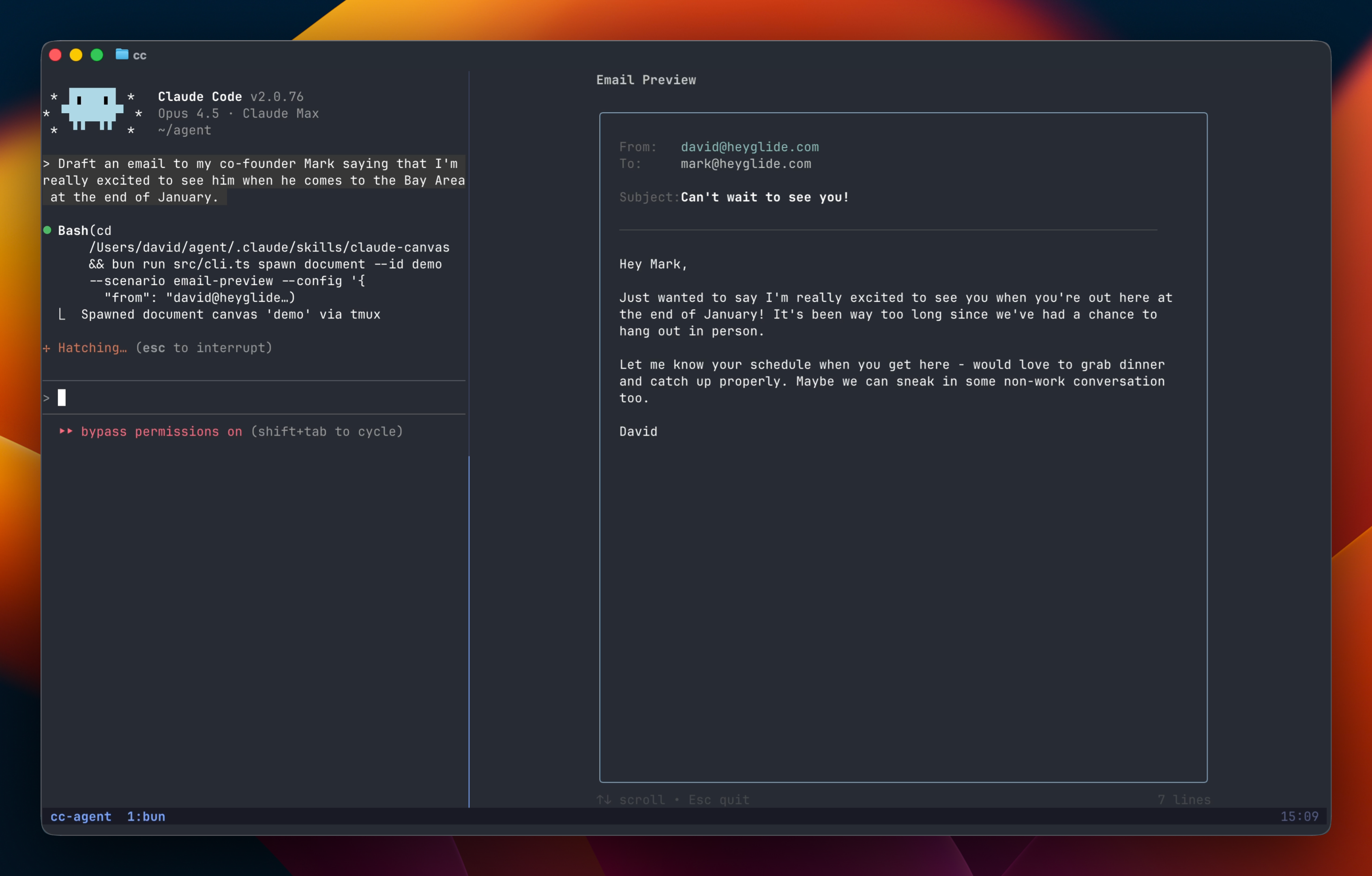
Install it with:
/plugin marketplace add dvdsgl/claude-canvas
/plugin install canvas@claude-canvas
Requires Bun and tmux. It's a proof of concept, but shows where Claude Code is heading - from text-only to visual, interactive applications.
Yolo mode: Run without permission prompts using --dangerously-skip-permissions. Best in a devcontainer. Add a git safety guard to block destructive commands.
Long-running tasks: Use the Ralph Loop pattern for tasks that run until done, restarting Claude automatically when it hits limits.
Agent-scoped hooks (2.1): Define PreToolUse, PostToolUse, and Stop hooks in an agent's frontmatter that only run during that agent's lifecycle. Perfect for verification agents that need their own Stop hook to enforce output format, or research agents that need their own PreToolUse hook to block certain operations.
Context forking for skills (2.1): Use context: fork in skill frontmatter to run the skill in a forked sub-agent context, isolating its execution from your main conversation. Great for research/exploration skills that you want to keep separate from your primary work.
Learn more:
- Shipping at Inference Speed - Planning before Claude touches code
- Effective Harnesses for Long-Running Agents - Anthropic's harness patterns
- Claude Skills Introduction - How skills encode good planning patterns
The meta-skill: What makes people good at using AI is the same thing that makes people good at management - defining outcomes, enforcing constraints, showing what good looks like. If you're bad at delegation, you'll be bad at prompting. The good news: both are learnable.